
Integrating smart home devices can seem a little technical at first, but with a calm approach, the process becomes straightforward. Pairing your Eufy video doorbell with the HomeBase allows you to fully enjoy your system’s security features while keeping your home monitoring seamless and reliable.
This guide focuses on how to add Eufy doorbell to Homebase, reassuringly providing clear instructions. Taking the time to understand each step ensures that your devices communicate effectively and that your system functions as intended. With careful preparation and patient setup, you can connect your doorbell and HomeBase with confidence, enjoying both convenience and improved protection for your home.
What is a Eufy HomeBase?
A Eufy HomeBase is the central hub for your Eufy security devices. It connects to your internet router and manages communication between cameras, sensors, and doorbells. Homebase stores footage securely locally, keeping your recordings private and accessible. The unit also ensures smooth operation across all connected devices, acting as a bridge between your smart hardware and the Eufy Security app. Its role is vital for maintaining a reliable, integrated system while simplifying management for the homeowner.
Preparing for Your Doorbell Setup
Before beginning the sync process, it’s helpful to ensure all devices are ready and your environment is conducive to connection. Make sure your HomeBase is powered and connected to your network, and that your doorbell is fully charged. This preparation minimizes potential disruptions and allows for a smooth, step-by-step setup experience. Being prepared also enhances your confidence in handling the devices, ensuring the connection process is calm and efficient. A little advanced attention prevents common hiccups and supports improved safety in daily usage.
The Importance of Connecting Your Doorbell to Homebase
Connecting your Eufy doorbell to the HomeBase is essential for proper system operation. This link ensures that recordings are securely stored locally, notifications are reliably delivered, and devices work together cohesively. Without this connection, your doorbell cannot fully integrate with other components, which may limit its capabilities. Establishing the connection improves overall protection by maintaining a consistent communication network between devices, helping you monitor your entryway safely and responsibly.
Common Situations You Should Be Aware Of
During setup, several situations may affect your connection. Weak Wi-Fi signals can reduce the range between the HomeBase and the doorbell. Network settings or firewalls on your router may temporarily block communication. Occasionally, devices might not be in the correct pairing mode or firmware may require updating. Being aware of these scenarios allows you to troubleshoot calmly, ensuring the setup progresses smoothly without frustration or unnecessary delays.
Tools and Materials You’ll Need
- Eufy Video Doorbell (fully charged)
- Eufy HomeBase unit
- Power adapter for the HomeBase
- Ethernet cable (included with HomeBase)
- Smartphone with the Eufy Security app installed
- Your home Wi-Fi network name and password
Step-by-Step Guide: Syncing Your Doorbell and Homebase
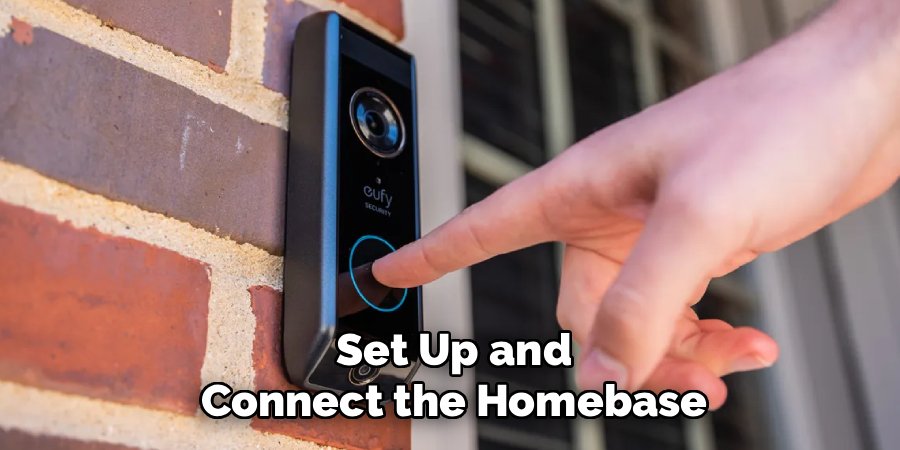
Step 1: Set Up and Connect the HomeBase
Simple Precaution: Ensure the power outlet is stable and continuously powered. Avoid outlets controlled by switches to prevent interruptions. A consistent power source enhances device reliability and supports secure operation during setup.
Step Explanation: Begin by positioning your HomeBase near the internet router. Connect the Ethernet cable from your router to the HomeBase. Plug in the power adapter and wait for the indicator light to illuminate. Once the startup process completes, typically indicated by a solid blue light, open the Eufy Security app on your smartphone. Follow the prompts to add a new HomeBase by scanning the QR code on the unit. This initial setup ensures your central hub is recognized by the app and ready to communicate securely with other devices. A stable connection at this stage lays the groundwork for reliable everyday performance.
Step 2: Fully Charge the Video Doorbell
Simple Precaution: Use the provided USB cable and charge in moderate temperatures. Avoid extreme heat or cold and third-party adapters, which could affect battery longevity.
Step Explanation: A fully charged doorbell is crucial for a successful sync. Locate the micro-USB charging port on the back of the device and connect the supplied cable. The indicator light shows the charging status, changing once the battery is full. Charging before setup ensures the pairing process is not interrupted and prevents delays caused by a low battery. With sufficient power, the doorbell can complete the secure digital handshake with the HomeBase efficiently. Ensuring optimal battery health supports smooth functionality and reliable performance in everyday usage.
Step 3: Initiate the Syncing Process in the Eufy App
Simple Precaution: Confirm your smartphone is on the same Wi-Fi network as the HomeBase. Avoid guest networks or cellular data to ensure smooth communication.
Step Explanation: Open the Eufy Security app and tap “Add Device.” Select “Video Doorbell” and your specific model. The app guides you through the preparation, confirming the HomeBase is ready and prompting you to position the doorbell nearby. This step acts as a secure bridge between your devices, initiating communication for pairing. Following the on-screen instructions ensures a steady connection. The app helps create a private and encrypted link, improving system integrity and reliability. Proper execution of this step reduces the risk of interruptions and enhances the security of your video recordings.
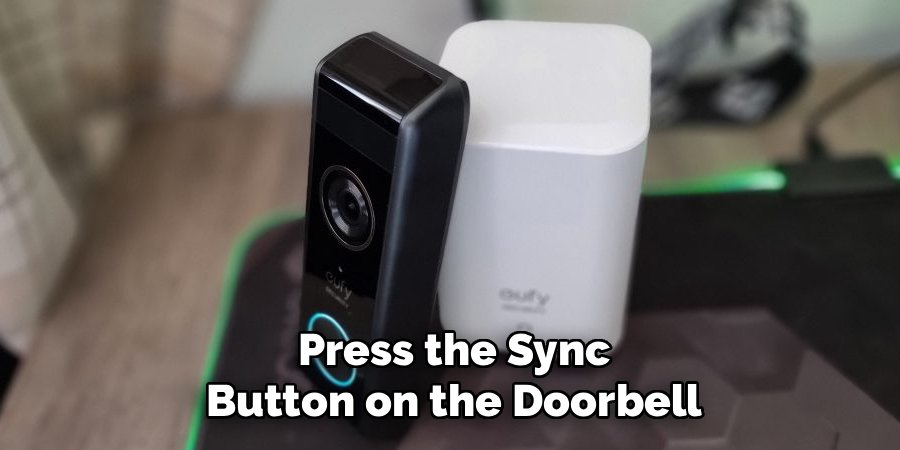
Step 4: Press the Sync Button on the Doorbell
Simple Precaution: Hold the doorbell close to the HomeBase and reduce nearby electronic interference. This proximity ensures a strong signal during the initial handshake.
Step Explanation: Press and hold the sync button on the back of the doorbell until you hear a beep or see a flashing LED. This indicates the doorbell is broadcasting its signal. The HomeBase will search for the device, while the app monitors the connection progress. This pairing moment establishes a secure digital link between your devices. Proximity and proper alignment are important to maintain signal strength and avoid potential communication interruptions. Following this procedure carefully contributes to improved safety and consistent device operation.
Step 5: Wait for the Devices to Pair
Simple Precaution: Be patient and avoid interacting with the devices during pairing. Interruptions can cause delays or require restarting the process.
Step Explanation: Once the doorbell broadcasts its signal, the HomeBase identifies it and begins registration. The app shows progress, while the HomeBase confirms detection. This step ensures an encrypted connection is established between the devices. A stable pairing guarantees that notifications, recordings, and motion detection work reliably. Taking a calm, patient approach supports a consistent setup and enhances the overall efficiency of your smart security system.
Step 6: Configure and Test the Doorbell
Simple Precaution: Test functionality in the intended installation spot. Ensure Wi-Fi signal strength is sufficient to maintain consistent alerts and video quality.
Step Explanation: After pairing, use the app to set motion detection zones, adjust sensitivity, and customize notifications. Test by pressing the doorbell button and walking in front of the camera to ensure proper recording and alerts. Confirm the live video feed operates smoothly. Testing before final installation allows you to identify optimal placement and avoid potential disruptions. This step ensures your doorbell functions reliably, providing secure monitoring and better protection for your home environment.
Simple Safety Tips You Can Use
Maintain updated firmware on both HomeBase and the doorbell to benefit from performance improvements. Use strong, unique passwords for your Eufy Security app. Position cameras thoughtfully to cover intended areas while respecting neighbors’ privacy. Regularly check devices for consistent operation and clear indicators. These measures enhance security without adding complexity, supporting responsible and informed management of your smart home.
Common Mistakes to Avoid
Neglecting to fully charge the doorbell can interrupt pairing. Placing the HomeBase too far from the Wi-Fi router reduces signal strength. Ignoring firmware updates or app prompts can affect connectivity. Being aware of these potential issues allows you to plan proactively, avoiding common interruptions while maintaining smooth and reliable system performance.
Frequently Asked Questions
Why won’t my Eufy doorbell connect to the HomeBase?
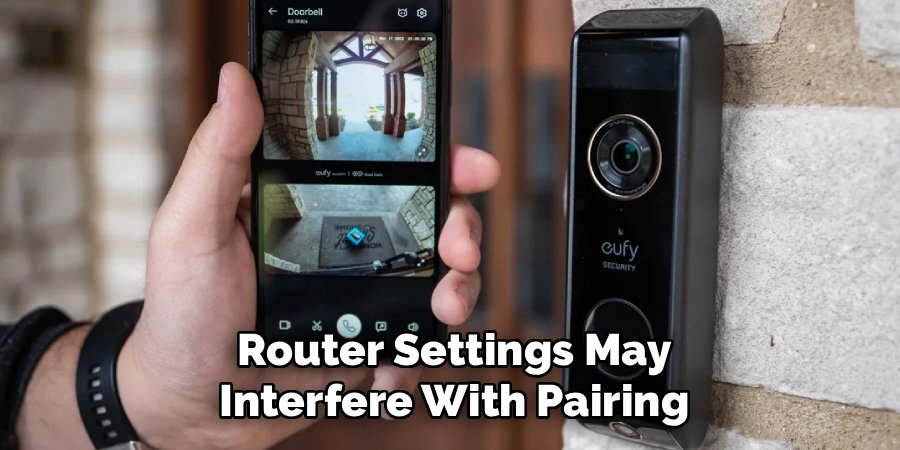
Several factors can affect the connection. Ensure firmware is up-to-date, and the doorbell is fully charged. Verify your smartphone is on the same Wi-Fi network as the HomeBase. Weak signals or router settings may interfere with pairing. Restarting the HomeBase and router can resolve temporary communication glitches. These steps often resolve most connectivity issues, promoting consistent and secure operation.
Can I connect the Eufy doorbell directly to Wi-Fi without a HomeBase?
Some wired models allow direct Wi-Fi connection, but battery-powered versions typically require a HomeBase. The HomeBase provides local storage and extends battery life. Always check your device specifications. Understanding whether a HomeBase is necessary helps in planning placement, ensuring reliable performance, and maintaining secure local storage.
How far can the Eufy doorbell be from the HomeBase?
Distance depends on home layout and construction. Open-air ranges may reach 300 feet, but walls and electronic devices can reduce effective distance. Central HomeBase placement generally ensures better coverage. Signal strength indicators in the app help identify optimal locations, reducing possible performance interruptions.
How do I add a second Eufy doorbell to my HomeBase?
The process mirrors the first doorbell setup. Ensure the new device is fully charged. In the app, select “Add Device” and follow the syncing prompts. Assign a unique name to differentiate devices. The HomeBase supports multiple devices, making system expansion straightforward and organized.
What does the flashing red light on my Eufy HomeBase mean?
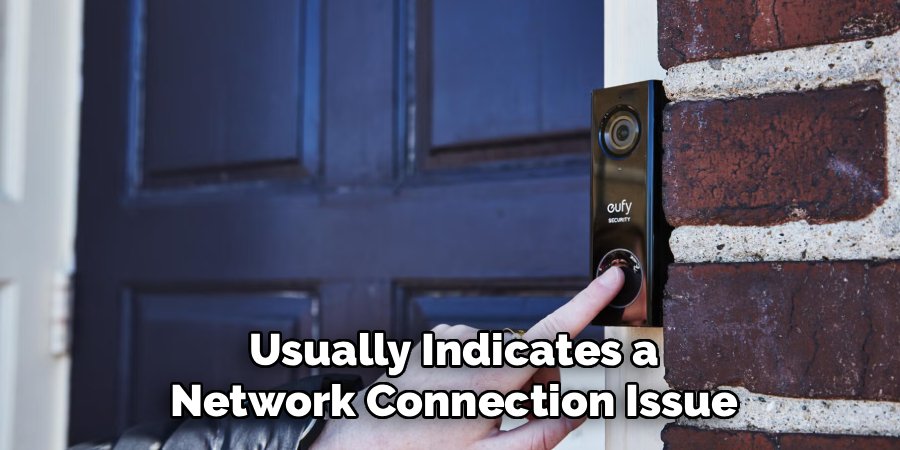
A flashing red light usually indicates a network connection issue. Check Ethernet cable connections and router functionality. Restarting both devices often resolves temporary issues. Ensuring proper network configuration and placement enhances connection stability and supports ongoing device reliability.
Conclusion
How to add Eufy doorbell to Homebase is a foundational step in establishing a secure and reliable smart home system. By approaching the setup with patience, preparation, and awareness, you can create a seamless connection between devices. Following these guidelines promotes responsible and informed usage, ensuring your security system functions efficiently while providing reliable notifications, recordings, and monitoring. A careful, methodical approach enhances safety, privacy, and convenience in your everyday home environment.
